What is an eSIM and how does it work for travel?
A practical travel guide that explains what an eSIM is, how it works for trips, pre-departure checks, activation methods, typical features (data, voice, SMS.
Key takeaways
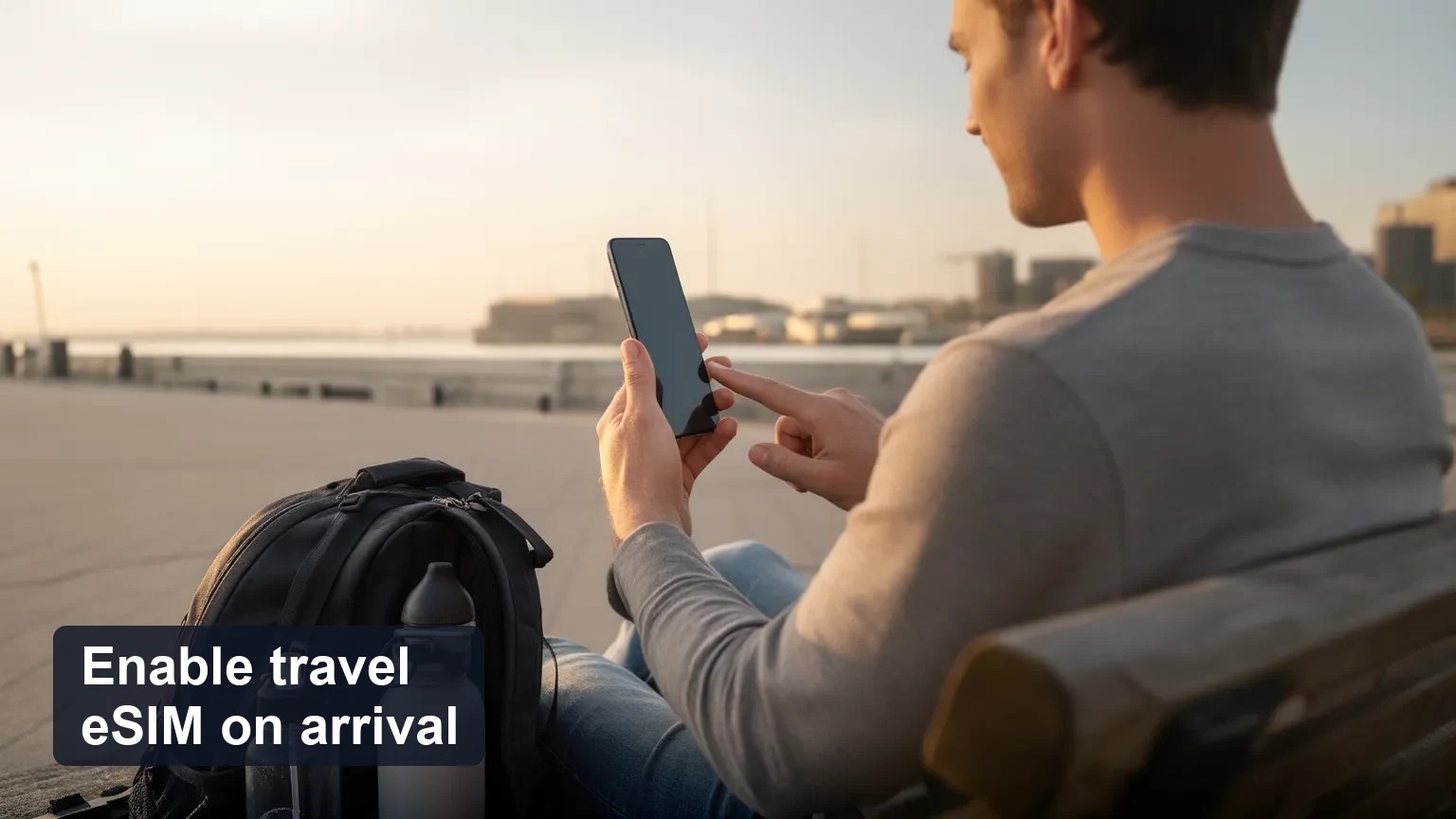
An eSIM is a programmable, digital SIM (embedded SIM or eUICC) that you can download and activate remotely — great for travel because you can install before you fly and enable on arrival.
Most travel eSIMs provide mobile data; voice/SMS and hotspot rules vary by plan, device, and local carrier — always check the plan fine print.
Before you go: confirm your phone supports eSIM, is carrier-unlocked (if needed), install the profile at home, and know whether to enable it immediately or on landing.
Quick answer (direct)
An eSIM (electronic SIM) is a secure, reprogrammable SIM that replaces a physical SIM card. For travel, it lets you buy a local or regional data plan, download a mobile profile over the internet (GSMA remote SIM provisioning), and switch your phone to use that profile without swapping physical cards. You can usually install the eSIM before departure and activate it at a chosen time, but voice/SMS and tethering support depend on the plan and local carriers.
What an eSIM is — eUICC, EID, and the basics of remote SIM provisioning
eUICC: The embedded Universal Integrated Circuit Card (eUICC) is the physical chip soldered inside modern phones that can hold multiple SIM profiles.
EID: The EID (eUICC Identifier) is a long, fixed number that uniquely identifies the embedded SIM chip. Some carriers or provisioning flows request the device EID during activation; others do not.
GSMA remote SIM provisioning: This is the standard that lets mobile operators and sellers securely deliver SIM profiles over the air (commonly called RSP, SGP.22). In practice, a provider creates a profile and the phone downloads it via a QR code or app.
Why this matters for travelers: you don't need a physical SIM swap. You download a profile (one or more) and switch between home and travel profiles in your phone's cellular settings.
Can I install an eSIM before departure and activate it on arrival?
Yes — installing before departure is recommended. Typical pre-trip workflow:
1. Buy the travel eSIM plan (web or app).
2. Receive a QR code or link, or use the provider’s app to download the profile while on Wi‑Fi at home.
3. Keep the profile dormant (do not enable data or set it as primary) until you want it active.
4. On arrival, enable the eSIM, turn on data roaming if required, and set it as your data line.
Notes: Some plans require a push activation from the provider or a phone reboot; some might need the phone’s EID during purchase. Install early so you can troubleshoot while you have stable Wi‑Fi.
Activation methods and timing: QR, app, and carrier push
QR code: Scan with the phone camera or Settings → Add Cellular Plan. This is the most common consumer flow.
Provider app: Download profile directly in the app; the app handles provisioning and activation timing.
Carrier push / OTA: The provider or carrier can push the profile to your device (usually needs EID or admin approval).
When to enable:
Install at home, enable on arrival: safest for troubleshooting and to avoid accidental roaming charges.
Install and enable before departure: possible when you want service immediately (e.g., for arrival pickup). Make sure the plan or provider allows activation to start at a scheduled time.
What travel eSIMs typically support: data, voice, SMS, and hotspot rules
Data: Almost all travel eSIM plans sell data-only packages. This is the baseline.
Voice & SMS: Less common for consumer travel eSIMs. Some travel eSIMs offer VoLTE and SMS (or forwarding) but many are data-only. If you need local voice/SMS, verify before purchase.
Hotspot/Tethering: Technically possible on many phones, but some providers or local carriers may block tethering or apply different fair-use limits. If tethering is critical (for work or multiple devices), verify policy per plan and country.
Emergency calls: Your phone should still be able to make emergency calls even without a local SIM in many jurisdictions, but local behavior varies. Keep your home SIM accessible if you rely on specific emergency services or callbacks.
Will my phone and local carriers accept a travel eSIM at my destination?
Compatibility factors:
Device support: Many recent iPhones (XS and later) and Android phones (a growing list from Google, Samsung, Huawei, etc.) support eSIM. Exact models vary by year and region.
Carrier lock: If your phone is locked to a home carrier that blocks eSIM provisioning, the travel eSIM may not install or activate. Confirm the device is unlocked.
Local carrier acceptance: Most operators support consumer eSIM profiles, but some countries and smaller carriers restrict eSIM roaming or provisioning. Check the eSIM plan’s country notes.
Plain-language EID explanation
The EID is simply the phone's built-in SIM serial number. Think of it like the device's SIM ID — sometimes a provider needs it so their system can send the right profile to your phone. You can usually find it in Settings → General → About (iPhone) or Settings → About phone → SIM status (Android).
Common traveler questions (community-style headings)
Can I install a travel eSIM at home and enable it when I land?
Yes. Install on Wi‑Fi, keep it inactive, then switch it on when you want service. This avoids airport stress and lets you test the installation pre-flight.
Will my carrier block eSIM roaming if my phone is locked?
It can. If your phone is carrier-locked, your provider may restrict adding third-party eSIM profiles. Ask your home carrier to unlock or confirm whether eSIMs are allowed.
How do I switch between primary SIM and travel eSIM quickly?
Use Settings → Cellular (or Mobile Network) → Select the active line for data and voice. Label profiles (e.g., “Home” and “Travel”) to avoid confusion.
Anyone had activation fail when trying at the airport Wi‑Fi?
Airport Wi‑Fi can block the provisioning servers some providers use. If activation fails at the airport, move to cellular data (your home SIM) or a private hotspot. That’s why installing at home is safer.
Troubleshooting common failures and quick fixes
Activation stalled: Reboot the phone, toggle airplane mode, and retry. If using a QR code, delete and reinstall the profile.
Cannot download profile: Try a different Wi‑Fi or mobile data connection; some public Wi‑Fi blocks provisioning ports.
No data after activation: In Settings, set the eSIM as your data line and enable data roaming if required. Check APN settings if provided by the seller.
Profile rejected or not found: Confirm you used the correct EID if requested, and that the profile wasn't claimed by another device.
Tethering not working: Check the plan fine print, and test with one device before travel. Some providers require a special APN or block hotspot.
Common mistakes to avoid:
Installing and activating at the airport instead of before travel.
Forgetting to enable data roaming or to select the eSIM as your data source.
Assuming all eSIMs include voice/SMS and tethering.
Not verifying device is unlocked and eSIM-capable.
Privacy and security considerations
eSIM provisioning uses encrypted channels under GSMA specifications; profiles are signed. Still, buy from reputable sellers and avoid public QR codes from unknown sources.
Deleting a profile does not necessarily erase provider-side records — check the provider’s privacy policy for data retention details.
How to choose a travel eSIM (decision criteria)
Device compatibility and unlocked status: Must support eSIM and be unlocked for third-party profiles if required.
Activation flexibility: Can you install early and schedule activation on arrival?
Features you need: Data-only vs voice/SMS, and explicit hotspot policy.
Coverage and speeds in your destination: Provider coverage maps and country notes.
Troubleshooting support: Available help channels (chat, email) and clear installation guides.
Worked example: 7-day business trip with hotspot need
Need: 5–10 GB data, tethering for a laptop, activation on landing.
Criteria: Confirm eSIM supports tethering in destination, buy a plan that allows activation on arrival, install pre-departure and test tethering while at home Wi‑Fi.
Answering traveler objections
"My phone might be locked": Ask your carrier to unlock or verify eSIM support before buying. Many carriers unlock on request if the device is paid off.
"Worry about emergency/local calls": Keep one physical SIM available or confirm the eSIM plan includes voice or that emergency calls work without a local SIM in that country.
"eSIMs may not allow hotspot": Check the plan's terms — tethering is commonly allowed but sometimes restricted.
"I prefer swapping physical SIMs": eSIM removes the physical swap but adds a settings step. Label your lines and practice switching once before travel.
Final pre-trip checklist (actionable)
Verify your phone model supports eSIM and find the EID in Settings.
Confirm the phone is carrier-unlocked if third-party eSIMs are needed.
Purchase the travel eSIM and install the profile on Wi‑Fi at home.
Keep the profile inactive if you want to enable it on arrival.
Note whether the plan supports voice/SMS and hotspot, and whether it requires APN changes.
Label your eSIM profile ("Travel") and practice switching data lines.
Save provider contact/support links and have a backup (physical SIM or home roaming plan) if reliable voice is critical.
Quick troubleshooting flow on arrival
1. If no connection: confirm active line is set to the travel eSIM.
2. Enable data roaming if required.
3. Toggle airplane mode or reboot.
4. Try a different Wi‑Fi or use the home SIM to trigger provisioning.
5. If still stuck, contact the provider with your EID and order reference.
Soft Esibyte note
If you want a quick compatibility check or to compare plan options, check https://esibyte.com for device support guidance and provider notes.
FAQ
Do travel eSIMs let you keep your home number for WhatsApp or calls?
Yes — apps like WhatsApp remain tied to your account and will work over a travel data eSIM. Receiving regular SMS for two-factor authentication can be affected if your home number can't receive SMS while roaming; keep a secondary verification method where possible.
Can I return to my home eSIM after the trip?
Yes. Switch your cellular settings back to your home line and delete the travel profile if you no longer need it.
Final notes
eSIMs make travel connectivity easier and less fiddly than physical SIM swaps, but details matter: device unlock status, activation timing, and hotspot/voice rules vary by provider and country. Install early, test at home, and use the checklist above to avoid common activation failures.
Plane deine Reise mit diesen eSIM-Reisezielen
Entdecke zu diesem Thema passende Zieltarife und vergleiche Optionen vor deiner Reise.
Erhalte sofort globale eSIM-Datentarife ohne Roaminggebühren Aktiviere in Minuten und bleibe online mit flexiblen Prepaid-Paketen