📱 How to Activate eSIM on iPhone (Step-by-Step Guide – 2025)
If you just purchased an eSIM and don’t know how to activate it on your iPhone, don’t worry — it only takes a few minutes.
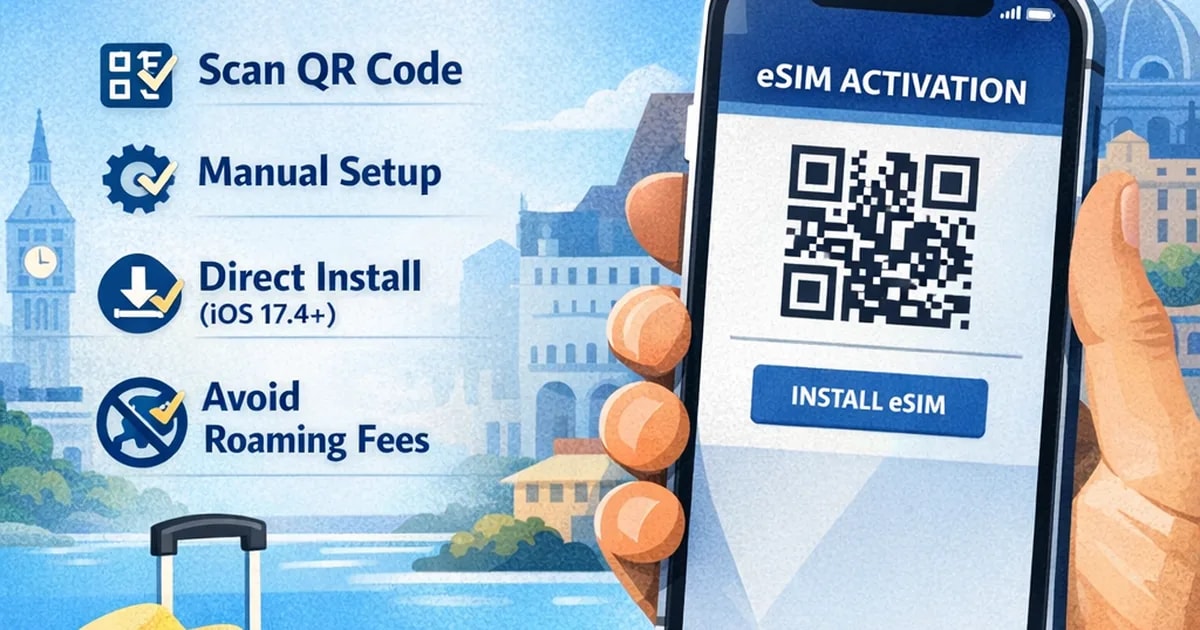
In this guide, you’ll learn:
What eSIM is on iPhone
How to activate eSIM using a QR code
How to install eSIM manually
How to use Direct Installation (iOS 17.4+)
How to avoid roaming charges
🔍 What Is an eSIM on iPhone?
An eSIM (embedded SIM) is a digital SIM card built into your iPhone.
Instead of inserting a physical SIM card, you install your mobile plan digitally.
Benefits:
No physical SIM needed
Activate instantly
Keep your primary number
Perfect for travel
Most iPhones from iPhone XS and newer support eSIM.
✅ Before You Activate Your eSIM
Make sure:
Your iPhone supports eSIM (Check compatibility)
Your device is carrier unlocked
You have a stable Wi-Fi connection
You have your QR code or activation details
📲 Method 1 — Activate eSIM Using a QR Code (Most Common)
Open Settings
Tap Cellular (or Mobile Data)
Tap Add eSIM
Select Use QR Code
Scan the QR code from another screen
Tap Continue
Label your plan (ex: “Esibyte Travel”)
Select your eSIM for Mobile Data
Turn OFF “Allow Cellular Data Switching”
To connect:
Go to Settings > Cellular
Select your eSIM
Turn the line ON
Enable Data Roaming if required
🔧 Method 2 — Activate eSIM Manually
If QR code doesn’t work:
Go to Settings > Cellular
Tap Add eSIM
Select Enter Details Manually
Paste:
SM-DP+ address
Activation code
Follow on-screen instructions
⚡ Method 3 — Direct Installation (iOS 17.4+)
If your device supports iOS 17.4 or newer:
You may see a Direct Install button in your dashboard.
Simply:
Open the installation page from your iPhone
Tap “Install eSIM”
Follow the prompts
This is the fastest method.
No QR code required.
🌍 When Should You Activate Your Travel eSIM?
Best practice:
Install before departure
Activate data once you arrive
Turn off your primary line’s roaming
This prevents unexpected roaming charges.
❓ Why Is My eSIM Not Working?
Common reasons:
Data roaming not enabled
Wrong line selected for data
Device is locked
QR code already used
💡 Pro Tip for Travelers
Using an eSIM lets you:
Avoid $12–$15/day roaming fees
Keep your WhatsApp number
Stay connected instantly after landing
If you’re traveling soon, make sure your device supports eSIM before your trip.
Plan your trip with these eSIM destinations
Discover destination plans related to this topic and compare options before you travel.
Get instant global eSIM data plans with no roaming fees Activate in minutes and stay online with flexible prepaid packages